All Google Ad Manager API calls must be authorized through [OAuth2](http://oauth.net/2/) an open standard that
allows users to grant permissions to third-party applications, so the
application can interact with web services on the user's behalf. OAuth2 enables
your Ad Manager API client application to access a user's Ad Manager account
without having to handle or store the user's username or password.
## Generate OAuth2 credentials
Perform the following steps to generate the OAuth2 credentials.
### 1. Determine your authentication type
Check the table below to see which **authentication type** is most appropriate
for your Ad Manager API application:
| Choose your OAuth2 authentication type ||
|---|---|
| **Service account** | Choose this if you only need access to your own Ad Manager data. [Learn more.](https://developers.google.com/identity/protocols/OAuth2ServiceAccount) |
| **Web application** | Choose this if you want to authenticate as any user who grants permission to your application to access their Ad Manager data. [Learn more.](https://developers.google.com/identity/protocols/OAuth2WebServer) |
### 2. Create OAuth2 credentials
Once you've determined your authentication type, click the corresponding tab
below and follow the instructions to generate the OAuth2 credentials:
Service Account
1. Open the [Google API Console Credentials page](https://console.cloud.google.com/apis/credentials).
2. From the project drop-down, choose **Create a new project** , enter a name for the project, and optionally, edit the provided Project ID. Click **Create**.
3. On the Credentials page, select **Create credentials** , then select **Service account key**.
4. Select [New service account](https://console.developers.google.com/apis/credentials/serviceaccountkey), and select **JSON**.
5. Click **Create** to download a file containing a private key.
Web application
1. Open the [Google API Console Credentials page](https://console.cloud.google.com/apis/credentials).
2. From the project drop-down, choose **Create a new project** , enter a name for the project (and optionally, edit the provided Project ID), and click **Create**.
3. On the Credentials page, select **Create credentials** , then select **OAuth client ID**.
4. You may be prompted to set a product name on the Consent Screen page; if so, click **Configure consent screen** , supply the requested information, and click **Save** to return to the Credentials page.
5. Select **Web Application** for the **Application Type**. Follow the instructions to enter JavaScript origins, redirect URIs, or both.
6. Click **Create**.
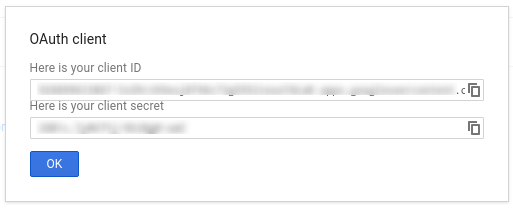
7. On the page that appears, copy the **client ID** and **client secret** to your clipboard, as you will need them when you configure your client library.
### 3. Configure your Ad Manager network
If you are a third-party developer, you may need to have your client do this
step for you.
Service Account
1. Go to your [Ad Manager network](https://admanager.google.com).
2. Click the **Admin** tab.
3. Ensure that **API access** is enabled.
4. Click the **Add a service account user** button.
5. Fill in the form using the service account email. The service account user must be granted with permissions to access the entities as if that service account user would access the entities on the UI.
6. Click on the **Save** button. A message should appear, confirming the addition of your service account.
7. View existing service account users by going to the Users tab and then clicking the **Service Account** filter.
Web application
1. Go to your [Ad Manager network](https://admanager.google.com).
2. Click the **Admin** tab.
3. Ensure that **API access** is enabled.
### 4. Configure and use a client library
Follow the appropriate guide below to use the credentials in your client library:
### Java
- [Service account flow](https://github.com/googleads/googleads-java-lib/wiki/API-access-using-own-credentials-(server-to-server-flow)#step-2---setting-up-the-client-library)
- [Web app flow](https://github.com/googleads/googleads-java-lib/wiki/API-access-on-behalf-of-your-clients-(web-flow)#step-2---setting-up-the-client-library)
### .NET
- [Service account flow](https://github.com/googleads/googleads-dotnet-lib/wiki/API-access-using-own-credentials-(server-to-server-flow)#step-2---setting-up-the-client-library)
- [Web app flow](https://github.com/googleads/googleads-dotnet-lib/wiki/API-access-on-behalf-of-your-clients-(web-flow)#step-2---setting-up-the-client-library)
### Python
- [Service account flow](https://github.com/googleads/googleads-python-lib/wiki/API-access-using-own-credentials-(server-to-server-flow)#step-2---setting-up-the-client-library)
- [Web app flow](https://github.com/googleads/googleads-python-lib/wiki/API-access-on-behalf-of-your-clients-(web-flow)#step-2---setting-up-the-client-library)
### PHP
- [Service account flow](https://github.com/googleads/googleads-php-lib/wiki/API-access-using-own-credentials-(server-to-server-flow))
- [Web app flow](https://github.com/googleads/googleads-php-lib/wiki/API-access-on-behalf-of-your-clients-(web-flow))
### Ruby
- [Service account flow](https://github.com/googleads/google-api-ads-ruby/wiki/API-access-using-own-credentials-(server-to-server-flow)#step-2---setting-up-the-client-library)
- [Web app flow](https://github.com/googleads/google-api-ads-ruby/wiki/API-access-on-behalf-of-your-clients-(web-flow)#step-2---setting-up-the-client-library)
If you choose not to use one of our client libraries, you'll need to implement
the OAuth2 [service account](https://developers.google.com/identity/protocols/OAuth2ServiceAccount) or [web
app](https://developers.google.com/identity/protocols/OAuth2WebServer) flow yourself.
## Behind the scenes
Our client libraries automatically take care of the details covered below so
only read on if you're interested in what's happening behind the scenes.
This section is intended for advanced users who are already familiar
with the [OAuth2 specification](http://tools.ietf.org/html/rfc6749) and
know how to [use OAuth2 with Google APIs](https://developers.google.com/accounts/docs/OAuth2).
#### HTTP request header
The HTTP header in every request to the Ad Manager API must include an access
token in this form:
```
Authorization: Bearer ACCESS_TOKEN
```
For example:
```
POST ... HTTP/1.1
Host: ...
Authorization: Bearer 1/fFAGRNJru1FTz70BzhT3Zg
Content-Type: text/xml;charset=UTF-8
Content-Length: ...
…
```
#### Scope
A single access token can grant varying degrees of access to multiple APIs. A
variable parameter called `scope` controls the set of resources and
operations that an access token permits. During the access token request, your
application sends one or more values in the `scope` parameter.
Ad Manager has only one scope, shown below. Authorization should be performed
at the user level within the product.
| Scope | Permissions |
|---|---|
| `https://www.googleapis.com/auth/admanager` | View and manage your campaigns on Ad Manager. |